
Appearance
Using Filters
Filters in ParaView are the core tools for processing and visualizing simulation data. They allow you to extract, isolate, and enhance specific regions or properties of your model — making complex results much easier to interpret.
Once your dataset is loaded and displayed, filters can be accessed from the Filters menu on the top toolbar or the Filter icons just below it. Each filter operates on the currently selected object in the Pipeline Browser, so always make sure you have the right dataset or filter selected before applying a new one.
Commonly Used Filters
Clip
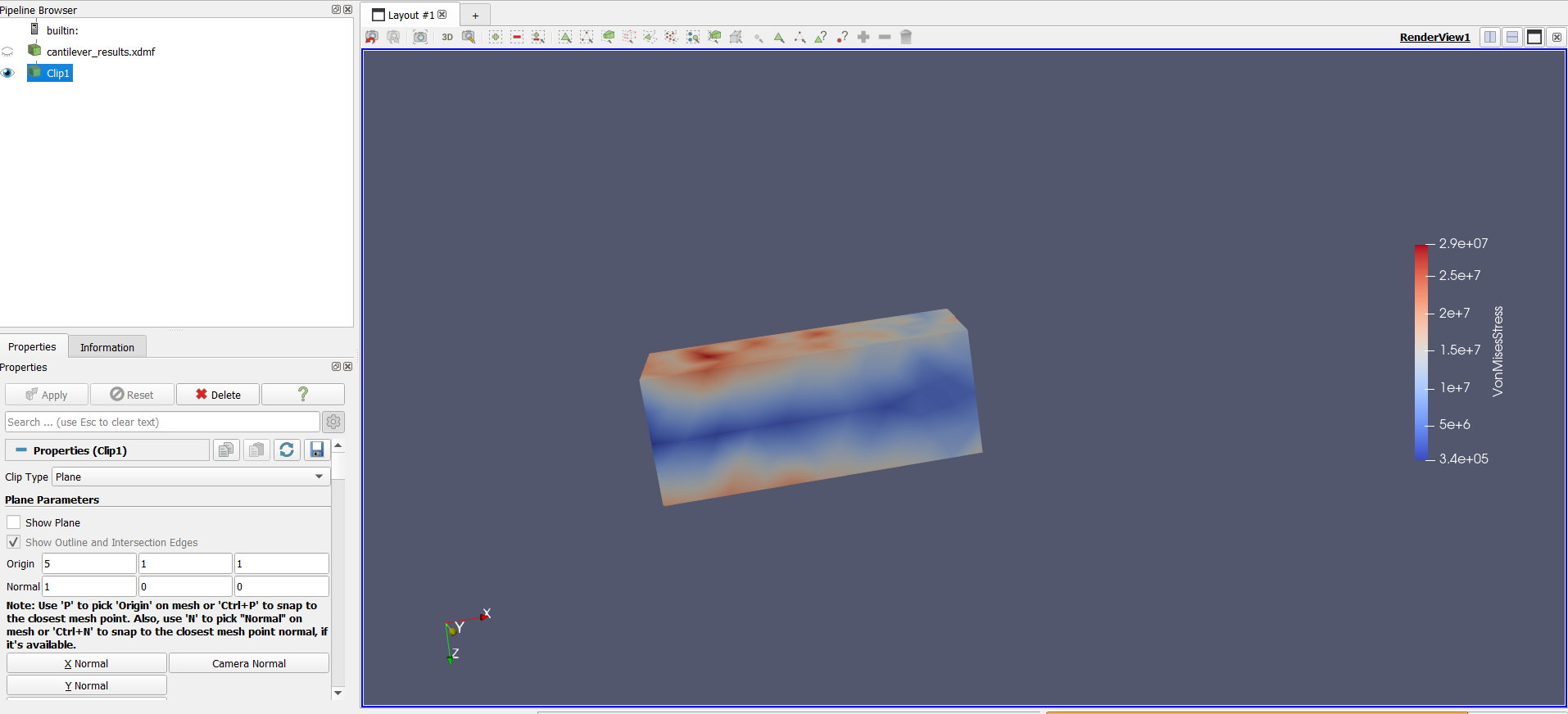
The Clip filter cuts your geometry using a plane, box, or sphere.
- You can adjust the plane orientation and position to expose interior regions of your mesh. The orientation and position of the clipping plane can be defined in the Properties Panel below the Pipeline Browser once you select the Clip filter.
- This is especially useful for inspecting cross-sections, internal structures, or field variations inside a solid or volume. Example: Clip a 3D cantilever beam model along the X-axis to inspect field intensity inside the beam.
Slice
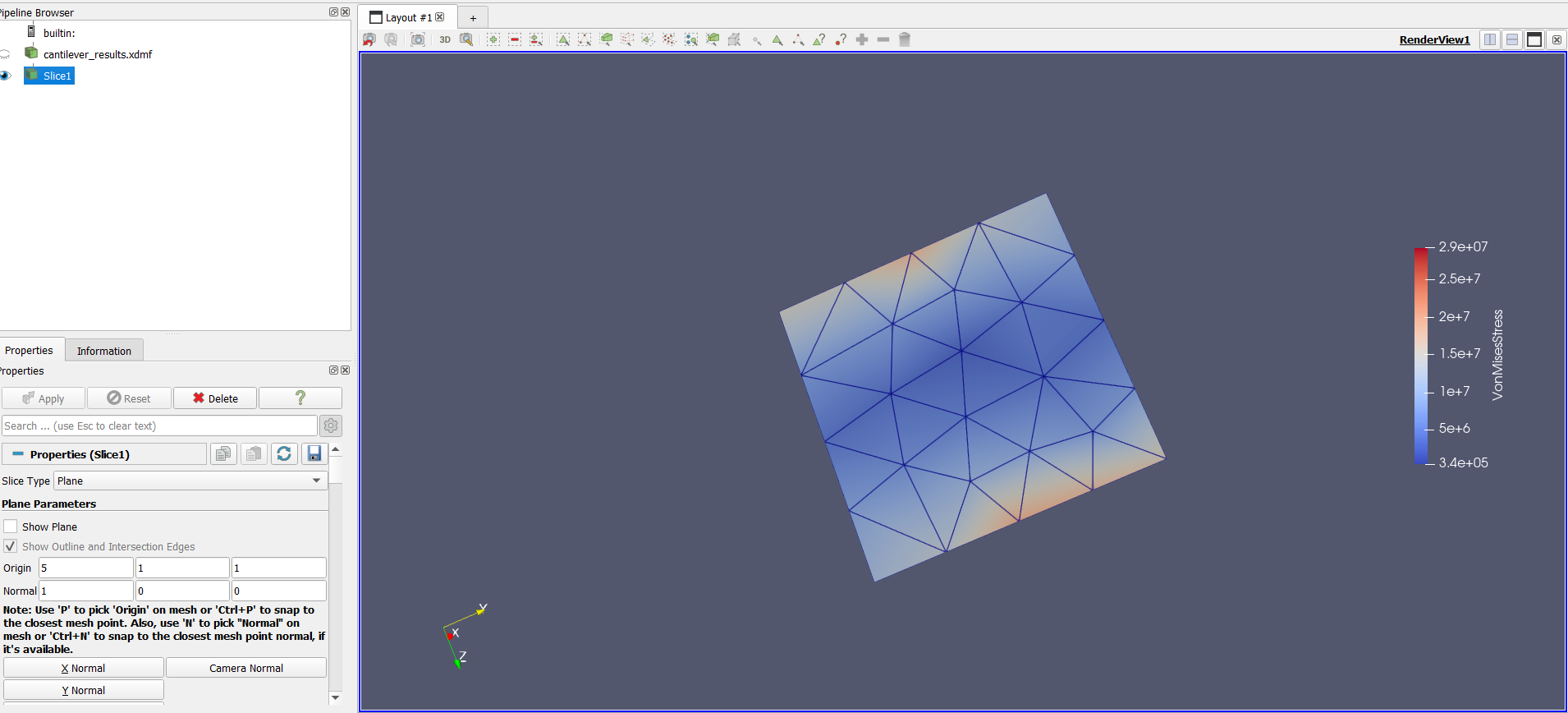
The Slice filter creates a 2D section of your 3D dataset.
- You can define the slice plane along any orientation or coordinate axis similar to the Clip filter.
- It’s ideal for studying field variations or stress patterns across specific cross-sections. Example: Slice a beam along the midplane to view the strain distribution across its thickness.
Threshold
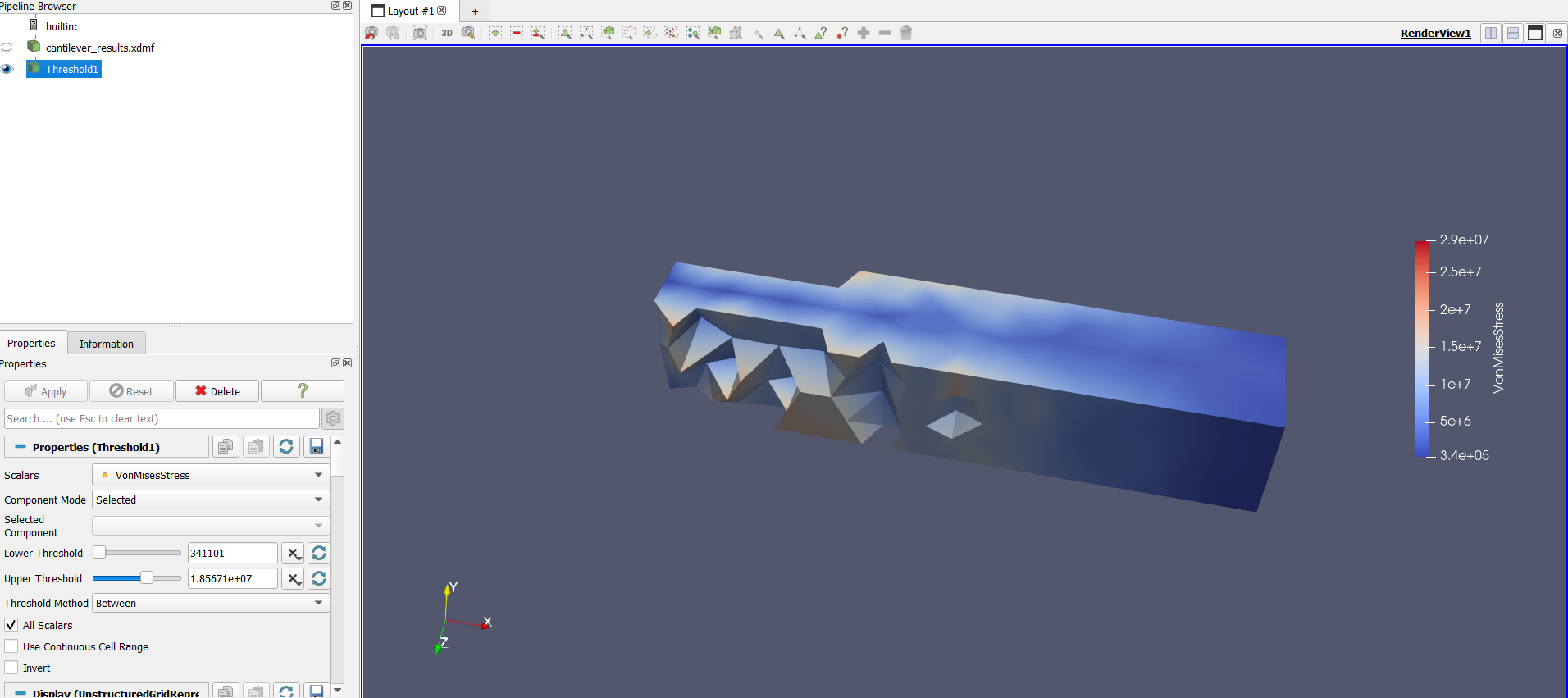
The Threshold filter isolates elements whose values fall within a specific range.
- You can specify the minimum and maximum values of a scalar field.
- This is useful for identifying stress concentration zones, temperature hotspots, or regions of high electric field intensity. Example: Use a threshold on the Von Mises stress field to highlight areas exceeding 80% of yield stress.
Warp by Scalar
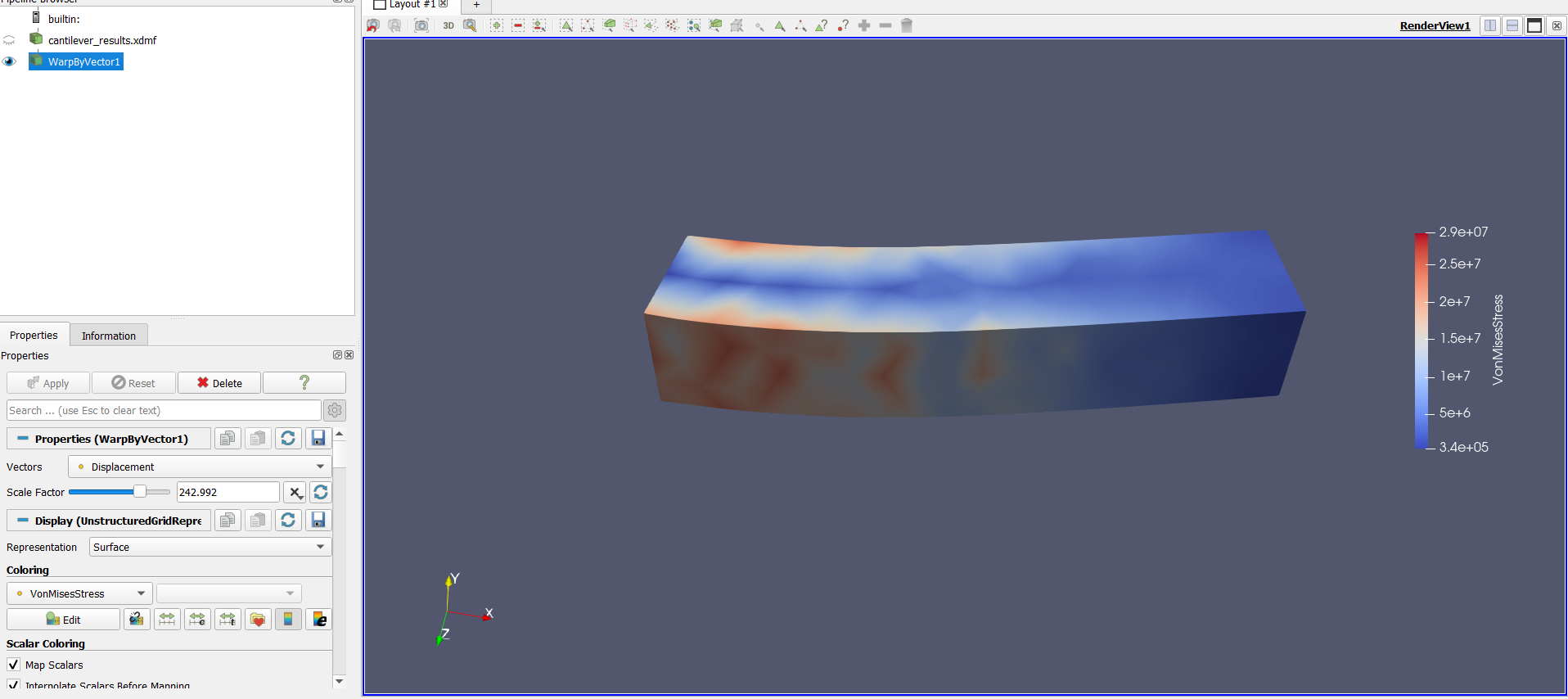
In many simulations, displacement or deformation values are too small to see visually. The Warp by Scalar filter helps by scaling these values for better visualization.
- It deforms the geometry based on the scalar field (e.g., displacement magnitude).
- The Scale Factor can be adjusted in the Properties Panel to exaggerate the deformation visually without altering data values. Example: Apply Warp by Scalar on a beam’s stress field to visualize bending clearly.
Tips for Using Filters Effectively
- Always click Apply after adjusting parameters in the Properties Panel.
- Use the eye icon in the Pipeline Browser to toggle visibility between original and filtered datasets.
- Filters can be stacked — for example, you can Slice a clipped model or Threshold a warped geometry for advanced post-processing.
Summary
Filters form the foundation of ParaView’s post-processing workflow. By combining filters like Clip, Slice, Threshold, and Warp by Scalar, you can explore your simulation data from multiple perspectives — revealing both the fine details and overall behavior of your model with clarity and precision.