
Appearance
Running FEniCS Inside Docker
Once Docker is installed and running, you can start using it to launch a complete FEniCS environment — without manually installing dependencies or configuring the solver. Everything runs inside a container, ready to use the moment it starts.
Step-1: Pull the FEniCS Docker Image
First, download the pre-configured FEniCS image we use at Avkalan Labs. Open your terminal (or Cmder if you’re on Windows) and run:
bash
docker pull iitrabhi/fenics_notebookThis command downloads the image named iitrabhi/fenics_notebook, which includes:
- Ubuntu (base system)
- FEniCS pre-installed
- Jupyter Notebook environment
- Common Python scientific libraries (
numpy,meshio,matplotlib, etc.)
Step-2: Run FEniCS in a Container
Once the image is pulled, start a new container by running:
bash
docker run -p 8888:8888 -v host_system_path:/root/ -w /root/ iitrabhi/fenics_notebookLet’s break this down briefly:
-p 8888:8888→ maps the container’s Jupyter Notebook port to your local machine-v host_system_path:/root/→ links your local folder (with your code) to the container-w /root/→ sets the working directory inside the container
You’ll need to replace host_system_path with the full path to your local code folder.
For example, if your files are stored in D:\1_codes, then the command becomes:
bash
docker run -p 8888:8888 -v D:\1_codes:/root/ -w /root/ iitrabhi/fenics_notebookTip:
- Avoid spaces in your folder names (use
_instead).- If you’re on macOS or Linux, use your normal filesystem path (like
/Users/username/Codes).
Step-3: Accessing Jupyter Notebook
Once you run the command, Docker will start the container and print a message similar to:
http://127.0.0.1:8888/lab?token=xxxxxxxxxxxxxxxx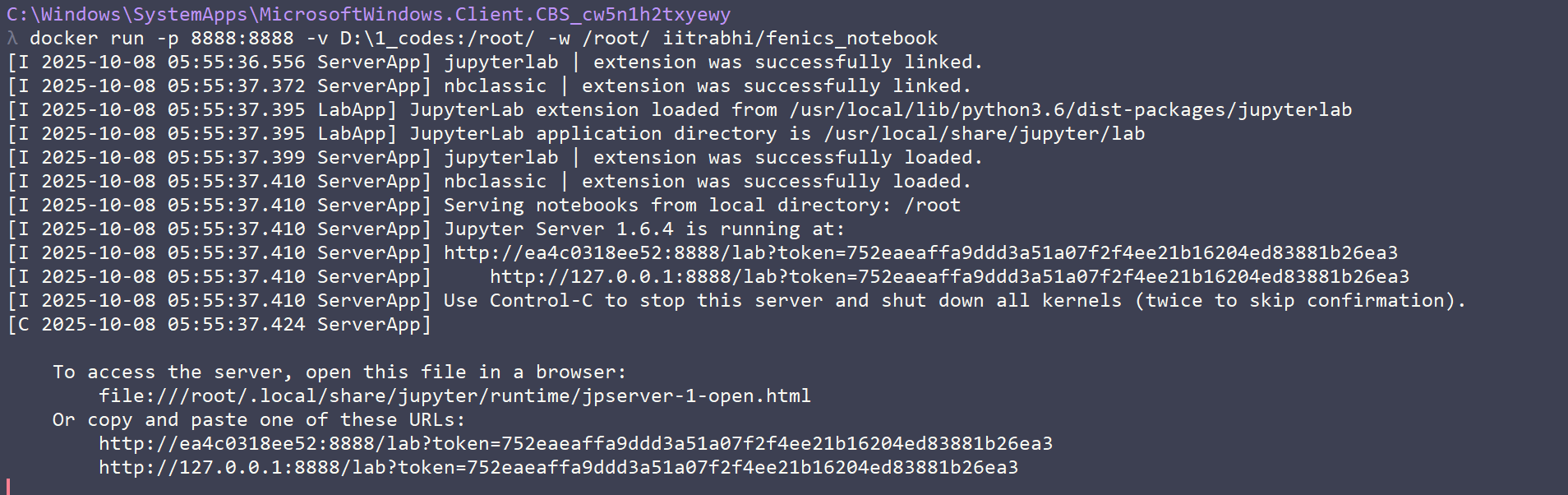
Hold Ctrl (or Cmd on Mac) and click on the link — this will open JupyterLab in your browser. You can now start running your FEniCS notebooks directly inside Docker.
Everything — from the Python kernel to the FEniCS solver — runs inside the container, ensuring a clean, reproducible environment.
Step-4: Optional – Automating the Startup
To make it easier, you can create a small startup script (optional).
For Windows
Create a file named start_fenics.bat and add the line:
bash
docker run -p 8888:8888 -v D:\Codes:/root/ -w /root/ iitrabhi/fenics_notebookSave it in your project folder and double-click it whenever you want to start your environment.
For macOS/Linux
Create a file named start_fenics.sh and add:
bash
#!/bin/bash
docker run -p 8888:8888 -v ~/Codes:/root/ -w /root/ iitrabhi/fenics_notebook
Then make it executable:
bash
chmod +x start_fenics.shRun it using:
bash
./start_fenics.shYou can get a detailed walkthrough on running FEniCS inside Docker from this video:
Summary
You’ve now successfully:
- Pulled the official FEniCS image
- Started a container with your local code directory
- Accessed Jupyter Notebook through your browser
- (Optionally) automated the startup for quick access
With Docker, you can now run your FEniCS simulations in a clean, reproducible, and portable environment — identical across all systems.