
Appearance
Installing ParaView
ParaView is one of the most widely used open-source tools for visualization and post-processing in computational engineering. It allows you to explore simulation results interactively, analyze field distributions, and generate high-quality plots and animations for reports or presentations.
At Avkalan Labs, ParaView is the standard visualization tool used for post-processing results from FEniCS, COMSOL exports, or other solvers that output .xdmf, .vtu, or .vtk files.
Installation on Windows
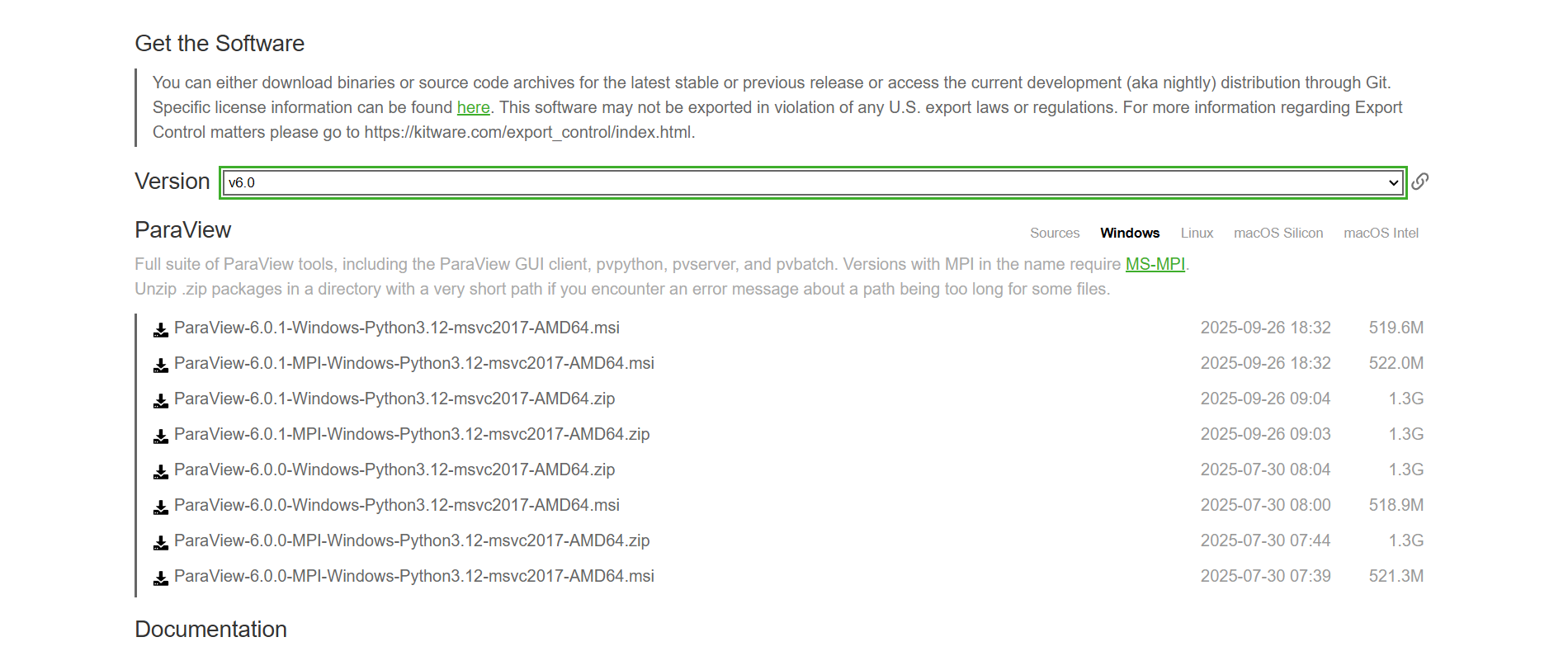
- Go to the official ParaView download page: https://www.paraview.org/download/
- Under the Windows section, download the MSI installer that matches your system architecture (usually “Windows 64-bit”).
- Once the download is complete, run the installer and follow the on-screen instructions.
- During installation, keep the default settings — they include Python and the required rendering libraries.
- After installation, you can launch ParaView from the Start Menu or by typing
paraviewin the Windows search bar.
Installation on macOS
- Visit the ParaView download page: https://www.paraview.org/download/
- Under macOS, download the latest
.dmginstaller package. - Once downloaded, open the
.dmgfile and drag ParaView to the Applications folder. - You can now launch it directly from Launchpad or Spotlight Search by typing
ParaView.
Verifying Installation
Once installed, open ParaView. The default splash screen should appear with options like Open File, Recent Files, and Sources. You can test the installation by loading a sample dataset:
- Go to File → Open
- Navigate to one of your
.xdmfor.vtusimulation output files. - Click Apply in the Properties panel to visualize it.
Summary
ParaView setup on both macOS and Windows is straightforward and requires no additional configuration. Once installed, it serves as your primary platform for visualizing meshes, analyzing field data, and generating publication-quality plots for all computational studies at Avkalan Labs.