
Appearance
Loading VTK/VTU/XDMF Files
ParaView supports a wide range of scientific data formats, and VTK-based files (.vtu, .vtk, .vtp, .pvtu, .xdmf) are among the most common for simulation post-processing — including those generated by FEniCS, COMSOL, and other finite element solvers.
Loading Files
Open ParaView and go to File → Open (or press
Ctrl + O). Or you can also drag and drop the file directly into the ParaView window.Navigate to your results directory and select the desired file — for example:
solution.vtu– unstructured grid datamesh.vtk– mesh-only dataresults.xdmf– dataset with multiple time steps or fields
Click Apply in the Properties Panel below the Pipeline Browser once the file appears in the Pipeline Browser. This loads and displays the dataset in the Render View.
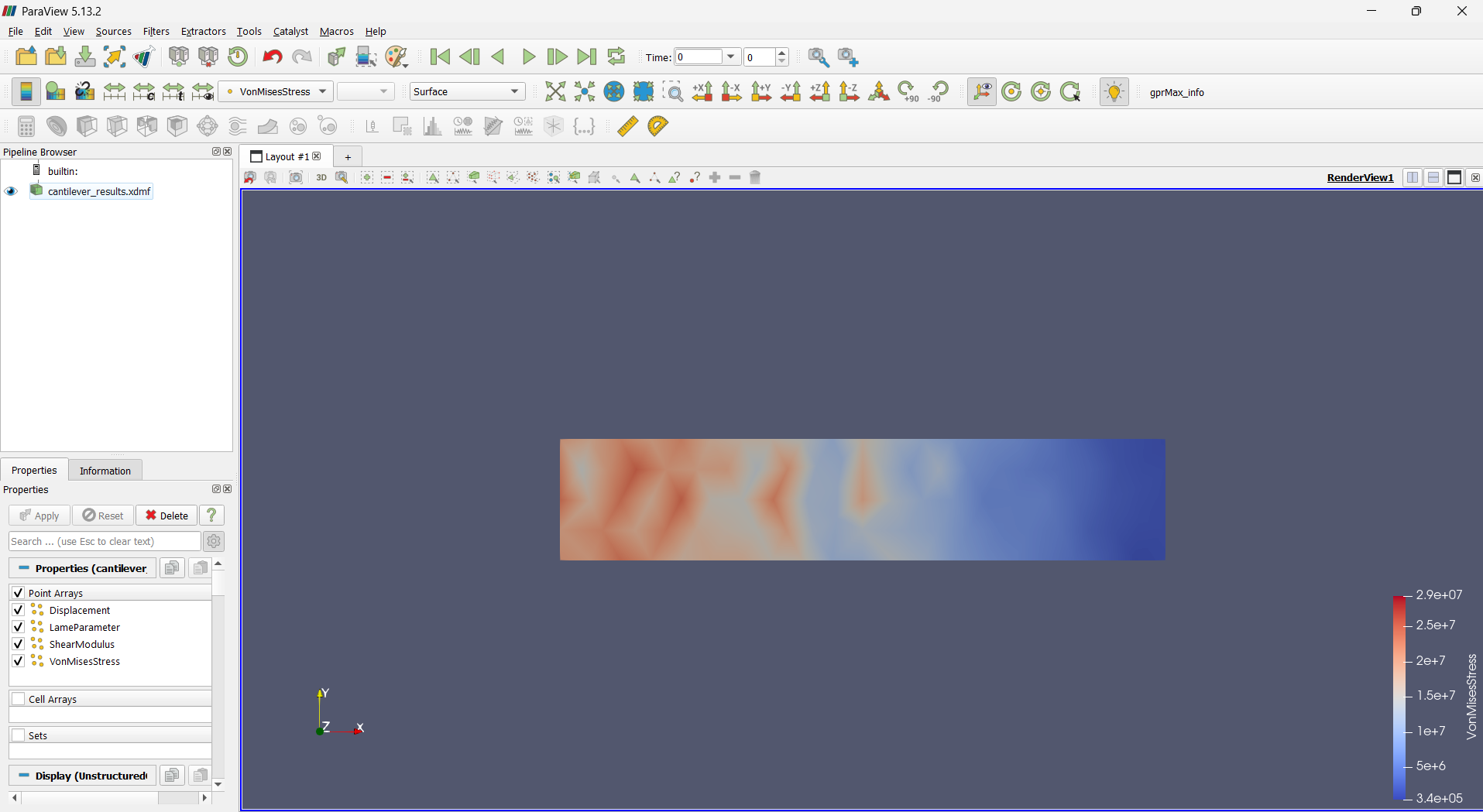
If your data contains multiple fields (e.g., E-field, temperature, stress), you can select which one to visualize using the field drop-down in the Toolbar.
Notes for Large or Multi-Step Files
- For time-dependent results, use the Play controls in the toolbar to animate the time steps.
- For large datasets, consider enabling Outline view initially to speed up rendering.
- If files appear empty, check that your solver exported both geometry and field data.
Summary
Loading VTK or XDMF files in ParaView is straightforward — simply open the file, click Apply, and start applying filters. This step forms the foundation for all further post-processing, enabling you to visualize fields, analyze patterns, and generate high-quality plots from your simulation results.