
Appearance
Salome Scripting and Automation
One of the most powerful features of Salome is its ability to automatically generate and replay all modeling steps through Python scripts. Every action you perform in the graphical interface — from geometry creation to meshing — is recorded internally and can be exported as a Python script for automation or parametric studies.
This allows you to recreate, modify, or batch-generate multiple models without having to repeat the manual steps each time.
Step-1: Exporting the Script
Once your geometry and mesh are ready, you can export the corresponding Python script directly from the menu bar.
- Go to File → Dump Study…
- Choose a save location and a file name (for example,
beam_model.py) - Click Save
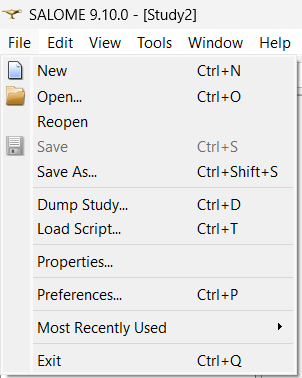
Salome will export a .py file that contains all the commands used to create your geometry, define physical groups, and generate the mesh.
Step-2: Understanding the Script
The exported script is a standard Python file that can be opened in any text editor. It contains the full sequence of modeling operations you performed inside Salome.
python
#!/usr/bin/env python

###
### This file is generated automatically by SALOME v9.10.0 with dump python functionality
###

import sys
import salome

salome.salome_init()
import salome_notebook
notebook = salome_notebook.NoteBook()
sys.path.insert(0, r'C:/Users/mehul/Downloads')

###
### SHAPER component
###

from salome.shaper import model

model.begin()
partSet = model.moduleDocument()

### Create Part
Part_1 = model.addPart(partSet)
Part_1_doc = Part_1.document()
model.addParameter(Part_1_doc, "l", '10')
model.addParameter(Part_1_doc, "w", 'l/10')
model.addParameter(Part_1_doc, "h", 'l/10')

### Create Box
Box_1 = model.addBox(Part_1_doc, "l", "w", "h")

model.end()

###
### SHAPERSTUDY component
###

model.publishToShaperStudy()
import SHAPERSTUDY
Box_1_1, = SHAPERSTUDY.shape(model.featureStringId(Box_1))
###
### SMESH component
###
In most cases — when you’ve built the model cleanly without undoing or deleting steps — the script will be well structured and easy to read.
However, if you have deleted or redefined parts, the exported script may contain repeated or redundant blocks. While these can be manually cleaned for better readability, even the unedited version will still run correctly when loaded back into Salome.
Step-3: Editing Parameters
One of the main advantages of the script is that you can edit geometric parameters directly in the Python code. For example, you can change dimensions like length, height, or width by simply updating their assigned values in the script.
When you load this modified script in Salome, it will automatically recreate the geometry and mesh using the new parameters — no manual steps required.
This makes the scripting workflow extremely efficient for parametric studies, where you might want to test multiple design variations quickly.
Step-4: Large-Scale Parametric Studies
For large-scale studies, you can use custom Python automation to generate dozens or even hundreds of scripts by varying parameters programmatically. Each script can then be executed to build a corresponding geometry and mesh configuration.
We are not covering this automation process here — it will be discussed in upcoming lessons — but it’s important to note that Salome fully supports this kind of batch operation.
Step-5: Loading and Running Scripts
Once you’ve edited or generated your script:
- In Salome, go to File → Load Script…
- Select the Python script file (
.py) you created or modified. - Click Open.
Salome will automatically execute all the commands and reconstruct the geometry, physical groups, and mesh exactly as defined in the script.
Alternatively, for advanced users, scripts can be run directly from the command line interface (CLI), allowing you to automate large batches of model generation without opening the GUI. This approach minimizes manual work when dealing with large numbers of parametric models or meshes.
We’ll explore this command-line automation in greater depth in the upcoming sections.
Summary
The Salome scripting feature provides a powerful bridge between graphical modeling and full automation.
By exporting and editing your Dump Study Python script, you can:
- Quickly reproduce or modify geometries
- Adjust parameters for parametric studies
- Automate repetitive modeling and meshing tasks
With scripting, Salome transitions from a graphical modeling tool into a fully programmable pre-processing platform, perfectly suited for research and large-scale simulation workflows.
At this point, you have covered all the essential steps for geometry creation and meshing in Salome. In the next chapters, we will move on to post-processing using ParaView, running simulations, and gaining a basic understanding of how to execute simulations in the cloud.