
Appearance
Running FEniCS in VS Code
You can run FEniCS inside VS Code using two main approaches — depending on how you installed FEniCS. Both approaches let you code, run, and visualize results directly in VS Code while keeping your workflow organized.
Two Approaches to Run FEniCS in VS Code
- If you installed FEniCS using WSL (Windows Subsystem for Linux)
- If you’re using FEniCS through Docker
Let’s go through both step-by-step.
Option 1 — Running FEniCS using WSL in VS Code
If you installed FEniCS through WSL (Ubuntu on Windows), you can connect VS Code directly to your Linux environment.
Step 1 — Run FEniCS Jupyter Notebook in WSL
Open your WSL terminal (Ubuntu) and start the Jupyter Notebook server by running the following command:
bash
jupyter notebook --ip=0.0.0.0 --port=8888 --no-browserFor detailed instructions on setting up and running Jupyter Notebook in WSL, refer to the guide here.
Keep this terminal open — VS Code will connect to this same environment.
Step 2 — Open VS Code in Remote (WSL) Mode
- Open VS Code on your system.
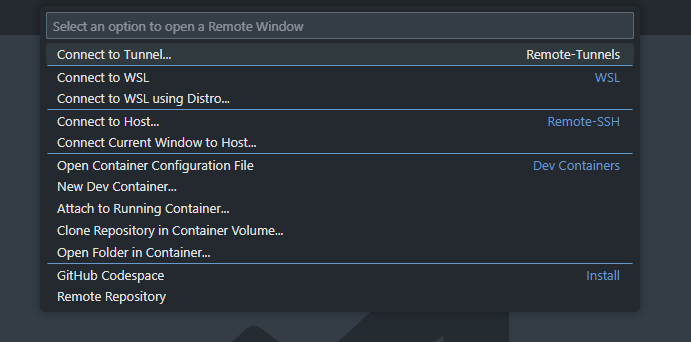
- Look at the bottom-left corner — click on the green button that says: “Open a Remote Window”.
 3. Choose “Connect to WSL”. 4. VS Code will now list your available WSL distributions (for example, “Ubuntu-22.04”). Select your FEniCS-enabled one. 5. A new VS Code window will open, now connected directly to your WSL environment.
Step 3 — Open Your Project Folder
In the new VS Code window:
- Click File → Open Folder, and choose the folder where your FEniCS files are stored.
- You’ll only see folders that exist inside your WSL file system. So make sure your files are inside WSL (e.g.,
/home/username/projects/fenics_code).
If your files are currently in Windows, move them to WSL:
Open a new WSL terminal window.
Navigate to your workspace and type:
bashexplorer.exe .This will open your WSL folder in the Windows File Explorer. You can drag and drop your files into this folder.
Step 4 — Run Your Code
Now, you can open any .py file and:
- Run it using the built-in VS Code terminal (bottom pane).
- Or run it interactively using Jupyter Notebooks if you have the Jupyter extension installed.
Note: All files run inside your WSL environment, not on Windows. So, your file paths and dependencies must point to locations inside WSL.
Option 2 — Running FEniCS using Docker in VS Code
If you installed FEniCS through Docker, you’ll be running your code inside a container that already has FEniCS and Jupyter preinstalled.
Step 1 — Run the FEniCS Docker Container
Open your terminal and start FEniCS as you did earlier:
bash
docker run -p 8888:8888 -v /Users/username/Codes:/root/ -w /root/ iitrabhi/fenics_notebookThis starts a FEniCS container with:
- Jupyter Notebook
- Python environment (with FEniCS + libraries)
- Your local code folder mounted at
/root/
Step 2 — Open Jupyter Notebook in VS Code
Once the container starts, you’ll see a terminal message with a link:
http://127.0.0.1:8888/?token=abcd1234...Copy that link.
In VS Code, open the Command Palette (
Ctrl + Shift + PorCmd + Shift + P) and select: “Jupyter: Select Jupyter Server” → “Existing”.Paste the link into the box and press Enter. VS Code will now connect to your Docker container’s Jupyter Notebook session.
Now you can open any .ipynb file and run it — it’ll execute inside the Docker container.
Step 3 — File Locations and Paths
One important thing to remember:
No matter where your files are stored on your host machine, the code always runs inside the container’s root directory (
/root/) that you mapped in the Docker command.
For example, if you ran:
bash
docker run -v /Users/username/Codes:/root/Then everything inside /Users/username/Codes on your computer will appear as /root/ inside Docker.
So in your Python scripts:
- Always use relative paths (like
./data/mesh.xdmf) - Or use absolute paths within
/root/(like/root/data/mesh.xdmf)
This ensures your scripts can find files correctly inside the container.
Notes
- If you’re on Windows + WSL, always connect VS Code using the Remote-WSL extension.
- For Docker, always ensure Docker Desktop is running before launching VS Code.
- VS Code’s Jupyter extension makes running
.ipynbfiles inside Docker extremely easy. - Use relative paths whenever possible — it keeps your scripts portable.
- When editing files in Docker or WSL, all code changes happen directly inside those environments — no need to copy files back manually.
Summary
There are two ways to run FEniCS inside VS Code:
- WSL mode – connect to your Ubuntu environment via Remote-WSL.
- Docker mode – connect VS Code’s Jupyter server to your running FEniCS container.
In both cases, make sure you’re working inside the environment where FEniCS is installed.
Keep your paths relative or correctly mapped to avoid file access issues.
Once set up, VS Code becomes your one-stop environment for writing, running, and managing FEniCS simulations — with the power of Linux or Docker running quietly in the background.