
Appearance
Automating with Bash Scripts
Bash scripting allows you to automate repetitive terminal tasks — saving time, reducing mistakes, and ensuring consistent execution. Whether you’re running simulations, organizing results, or testing setups, Bash scripts are a simple yet powerful tool to streamline your workflow.
What is a Bash Script?
A Bash script is just a text file containing a series of commands that are executed in order. Instead of typing commands manually each time, you can run the script once and let it do the work automatically.
Creating a Simple Bash Script
Let’s create a simple Bash script to test if your setup works correctly.
Open a terminal and create a new file:
nano test_script.shAdd the following lines:
bash#!/bin/bash echo "Creating a Python test file..." echo 'print("If you are seeing this, then your bash is working fine")' > test.py python3 test.py echo "Bash script executed successfully!"Save and exit (
Ctrl + O,Enter,Ctrl + X).Make the script executable:
chmod +x test_script.shRun it:
./test_script.sh
If everything is set up correctly, you should see:
If you are seeing this, then your bash is working fine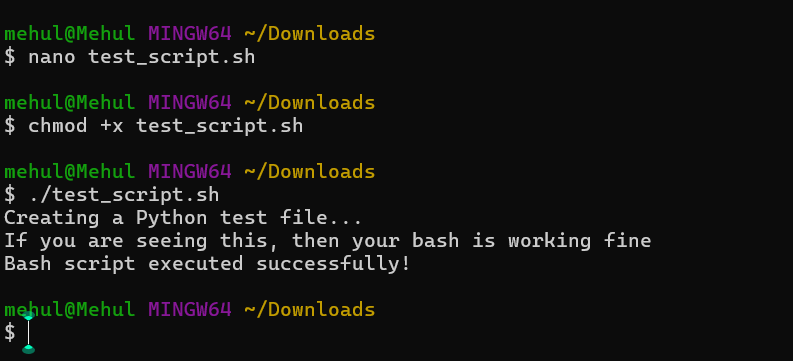
Verifying Python Availability
Before running the script, make sure Python is available in your terminal by checking:
which pythonor
python --versionThese commands confirm the Python installation path and version.
Supported Terminals
The above commands and script will work in:
- Ubuntu / Linux terminals
- WSL (Windows Subsystem for Linux)
- macOS Terminal
On Windows Command Prompt or PowerShell, Bash commands won’t work natively — you’ll need to run them through WSL (Ubuntu) or a Git Bash terminal.
Summary
This simple example shows how to:
- Write a Bash script
- Automate file creation and Python execution
- Verify your Python environment
Once you’re comfortable with the basics, you can extend Bash scripts to run simulations, batch-process meshes, or automate complete study workflows.