
Appearance
Installing Docker
Now that we know why Docker matters in simulation workflows, let’s set it up on your system. Docker installation is straightforward — it provides native installers for Windows and macOS, making it easy to start building and running containers locally.
Once installed, you’ll be able to build, run, and manage containers directly from your terminal.
Step-1: Download Docker Desktop
The easiest way to install Docker is through Docker Desktop, which includes both Docker Engine and Docker Compose.
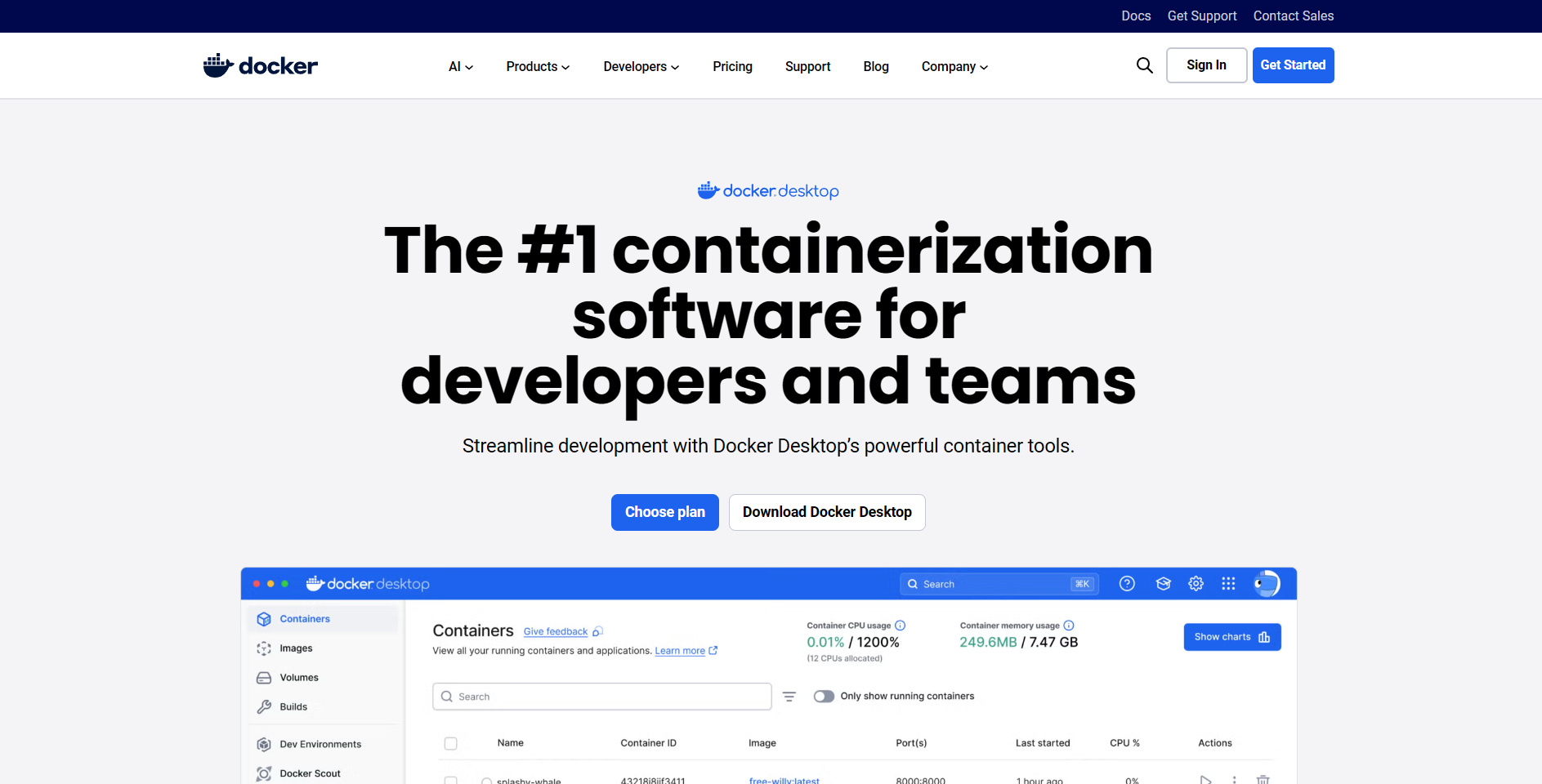
Go to the official Docker website: https://www.docker.com/products/docker-desktop
From there, download the version that matches your operating system:
- Windows – “Docker Desktop for Windows”
- macOS – “Docker Desktop for Mac”
Step-2: Installation on Different Systems
Windows (via WSL 2)
- Ensure that Windows Subsystem for Linux (WSL 2) is enabled. If you’ve already installed Ubuntu for your FEniCS setup, you’re ready to go.
- Download Docker Desktop for Windows from the official Docker website.
- Run the installer and keep the default settings.
- Once installed, open Docker Desktop — it will automatically detect your WSL 2 distributions (like Ubuntu).
- Verify that Docker is running — the whale icon in your system tray should be active, as shwon in the image below.

To confirm the installation, open Command Prompt or any terminal app in your system and run:
bash
docker --versionExpected output:
Docker version 28.4.0, build d8eb465If you see a version number, Docker is successfully installed and connected with WSL. 
macOS
- Download Docker Desktop for Mac from the same link above.
- Open the
.dmgfile and drag Docker into your Applications folder. - Launch Docker Desktop — it will request permissions on the first launch.
- Once running, you’ll see the Docker whale icon in your status bar, as shown in the image above.
To verify the installation, open Terminal and run:
bash
docker --versionIf you see a version number, Docker is installed correctly and ready to use.
Step-3: Verifying Docker Setup
To confirm that Docker is working correctly, run the following command:
bash
docker run hello-worldIf the installation is successful, you’ll see this message in your terminal:
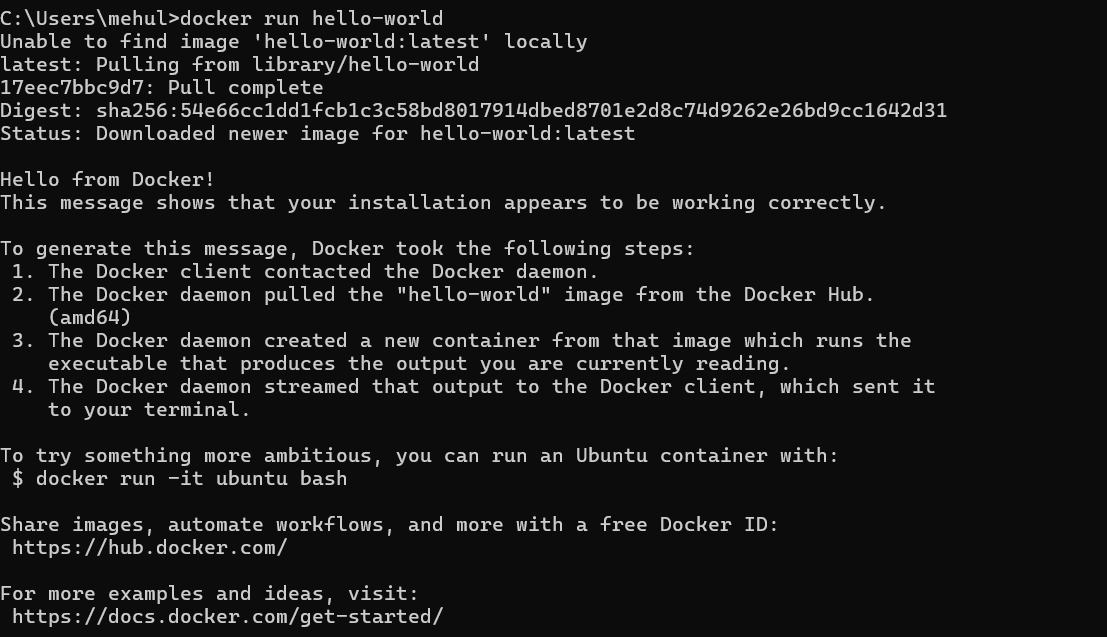
This test verifies that your Docker Engine, networking, and configuration are all functioning properly.
Summary
You now have Docker installed and running on your system. This sets the foundation for the next section — where we’ll explore how Docker containers and images work, and how we use them to run FEniCS and other scientific tools reproducibly.