
Appearance
Managing Containers
Once you’ve started running simulations with Docker, it’s important to know how to manage your containers — start them, stop them, remove them, and check what’s currently running.
Think of this as basic housekeeping for your Docker environment.
1. Checking Active Containers
To see all containers currently running:
Note: Before running this command, you need to ensure that the Docker app is running on your system.
bash
docker psbash
docker psThis lists container IDs, image names, ports, and current status.
To see all containers (including stopped ones):
bash
docker ps -aThis will show the output like this:
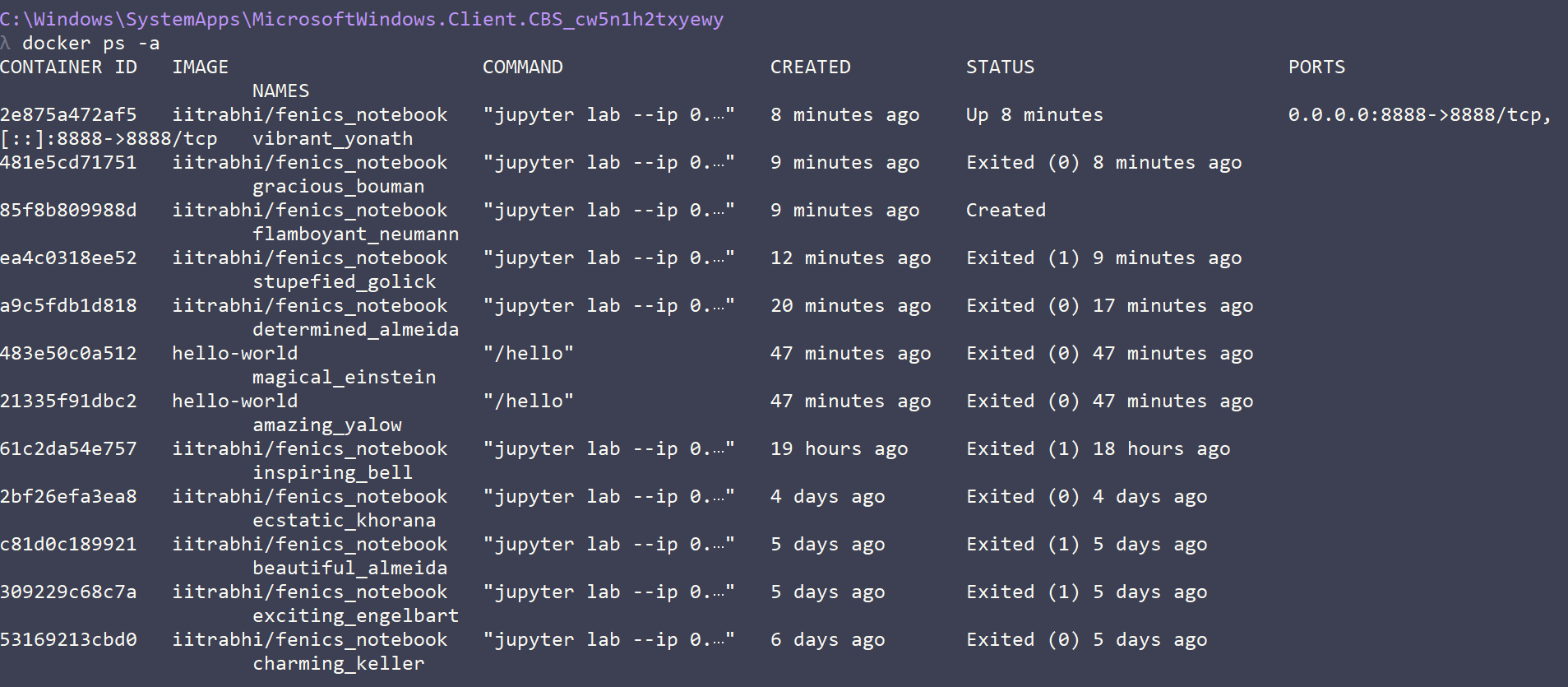
Tip: You can also view all your containers visually in the Docker Desktop app under the “Containers” tab. From there, you can start, stop, or remove containers with just a click — no terminal needed.
2. Starting and Stopping Containers
If a container is already created but not running, you can start it again using:
bash
docker start <container_id>To stop a running container:
bash
docker stop <container_id>Replace <container_id> with the first few characters of the container ID shown in docker ps.
In Docker Desktop, the same actions can be done from the Containers section — simply click Start or Stop next to the container name.
3. Removing Containers
Once you’re done with a container and no longer need it, remove it using:
bash
docker rm <container_id>To remove all stopped containers at once:
bash
docker container pruneIn Docker Desktop, you can also delete containers by clicking the trash icon next to them.
4. Listing and Removing Images
To see all downloaded images:
bash
docker imagesTo delete an image (for example, old versions you no longer use):
bash
docker rmi <image_id>This will show the output like this: 
You can also view and remove images directly from the Images tab in Docker Desktop.
5. Cleaning Up Space
If you ever run into space issues, you can clear unused containers, images, and cache in one go:
bash
docker system prune -a(Use this carefully — it deletes everything that’s not currently in use.)
The same cleanup options are available in Docker Desktop under Settings → Resources → Clean / Purge data.
You will get an idea about managing containers and building custom images from this video:
Summary
You can manage Docker containers in two ways:
- Using the terminal – for quick control and scripting.
- Using Docker Desktop – for a simple visual interface.
Key commands:
docker ps– list containersdocker start/stop– control containersdocker rm– remove containersdocker images/docker rmi– manage imagesdocker system prune– clean up space
With these few tools, you can keep your Docker workspace clean, efficient, and ready for the next simulation.
Next, we’ll look at how to build your own Docker images for custom simulation setups.