
Appearance
Installing WSL and Ubuntu on Windows
The very first step in setting up your simulation environment starts with installing Ubuntu on your Windows system. Ubuntu gives you access to a full Linux environment — the same foundation used in most research and high-performance computing workflows.
To make this possible on Windows, we use WSL — Windows Subsystem for Linux. It allows you to run Linux directly on Windows without setting up a separate virtual machine or dual boot.
Step-1: Installing Ubuntu using WSL
- Open the Microsoft Store on your Windows system.
- In the search bar, type “Ubuntu”.
- From the list, select Ubuntu 20.04.6 LTS. (This is the version we use across most of our setups at Avkalan Labs for stability and compatibility.)
- Click on Install and wait for the installation to complete.
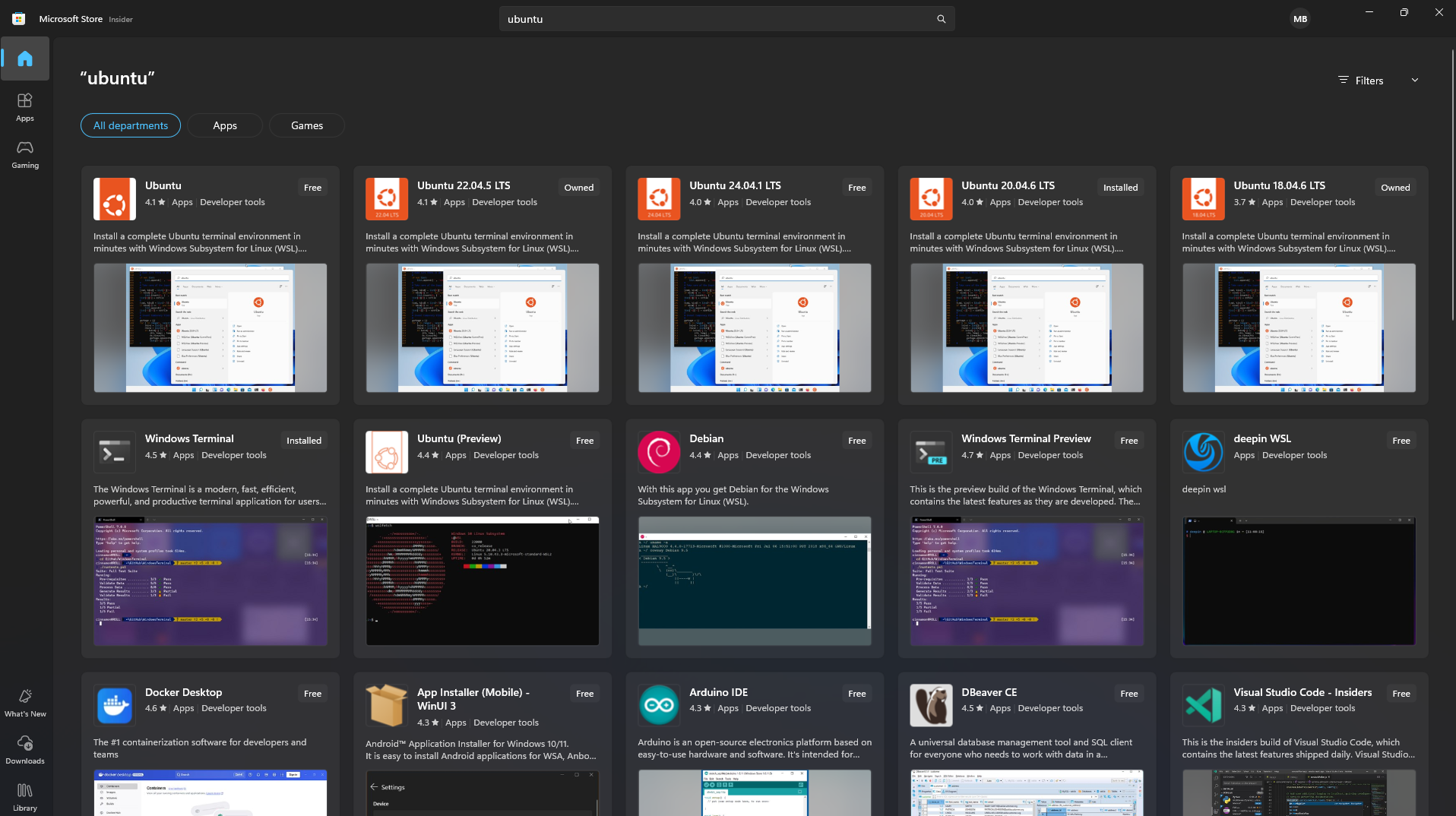
Once the installation is done, Ubuntu will be available as a separate app inside your Start Menu.
Step-2: Running Ubuntu for the First Time
Open the Windows Search Bar and type “Ubuntu”.
Launch the app — it will open a new terminal window.
The first time you run Ubuntu, it will take a few moments to set up the environment.
You’ll then be asked to create a new UNIX username and password.
- Choose a simple lowercase username (for example,
manpreetorjoe). - Set a password you’ll remember — you’ll need it for administrative tasks later.
- Choose a simple lowercase username (for example,
Once the setup finishes, you’ll be inside your Ubuntu terminal — ready to start working in a Linux environment.
Troubleshooting: Virtualization Errors
If you encounter any errors related to virtualization during the installation process, ensure that virtualization is enabled on your system. Here’s how you can check:
- Restart your computer and enter the BIOS/UEFI settings (usually by pressing a key like
F2,F10, orDELduring startup). - Look for an option related to virtualization (e.g., Intel VT-x, AMD-V, or SVM Mode) and ensure it is enabled.
- Save the changes and restart your computer. Once virtualization has been enabled, you can try re-running WSL and follow the instructions in Step-2: Running Ubuntu for the First Time to complete the setup process. Add