
Appearance
Building Custom Images
Sometimes you may want to build your own Docker image instead of using a pre-built one. For example, you might just need a lightweight environment with Python installed — or you may want to understand how images are built from scratch.
Let’s create a simple image that prints:
“Hello World from your Docker image”
1. Create a Project Folder
Create a new folder anywhere on your system, for example:
mkdir docker_hello
cd docker_hello
2. Create a Python Script
Inside this folder, create a file named hello.py and add the following line:
python
print("Hello World from your Docker image")This is the small script that will run automatically when the container starts.

3. Create a Dockerfile
In the same folder, create another file named Dockerfile (no extension) and add the following content:
dockerfile
# Start from the official Ubuntu base image
FROM ubuntu:20.04

# Install Python
RUN apt update && apt install -y python3

# Copy the Python script into the container
COPY hello.py /app/hello.py

# Set working directory
WORKDIR /app

# Run the script when the container starts
CMD ["python3", "hello.py"]
To create the file:
- Open Notepad (or any text editor).
- Paste the content above into the editor.
- Save it exactly as follows:
- File → Save As…
- File name:
"Dockerfile"(with quotes, to ensure no extension is added). - Save as type: “All Files”.
- Folder: Navigate to the folder where
hello.pyis located (e.g.,docker_hello). - Click Save.
That’s it — the file will be saved without any extension.
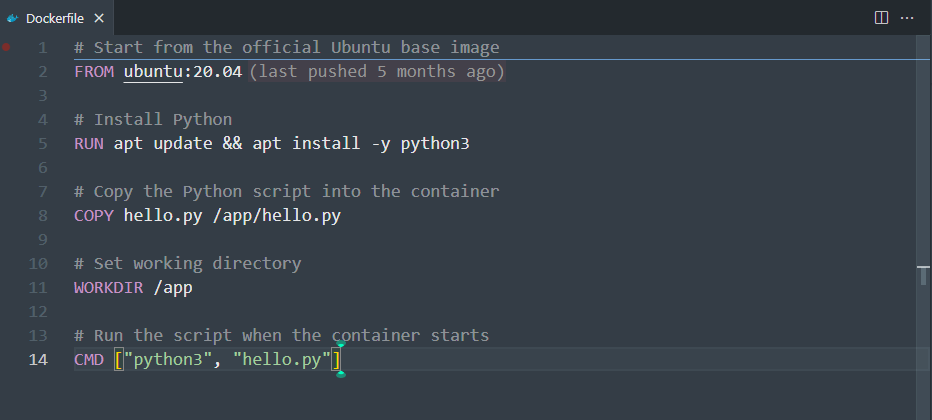
Here’s what this does:
- FROM ubuntu:20.04 → starts from a clean Ubuntu system
- RUN → installs Python
- COPY → moves your
hello.pyscript into the container - CMD → tells Docker what to execute when the container runs
4. Build the Image
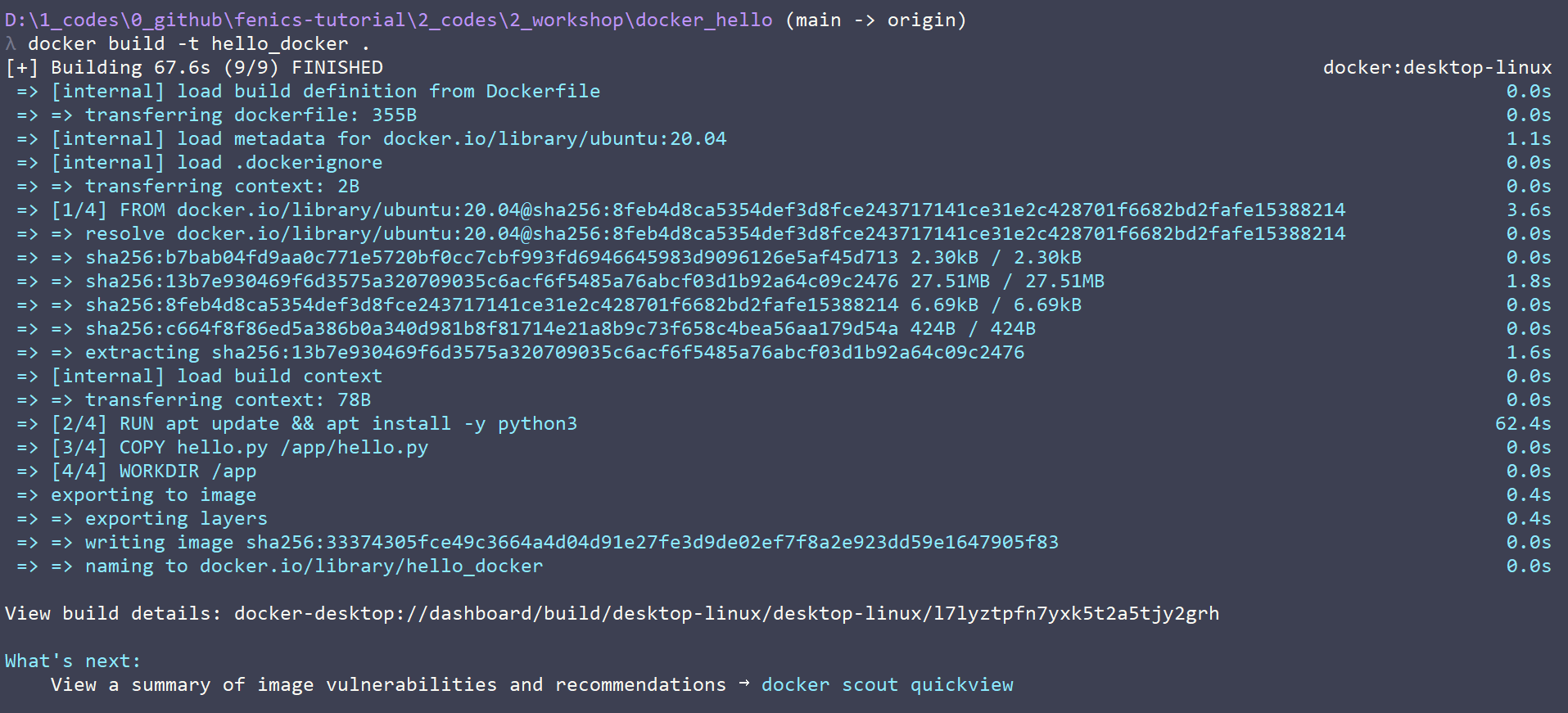
Now build the image using:
bash
docker build -t hello_docker .This command reads the Dockerfile and builds an image named hello_docker.
5. Run the Container
Once the build is complete, run it using:
bash
docker run hello_dockerYou should see the message:
Hello World from your Docker imageThat’s it — you’ve successfully built and run your first custom Docker image!

Summary
- Dockerfile defines what goes inside your image
docker buildcreates the imagedocker runexecutes it
This small exercise shows how containers can package even simple scripts in a reproducible way — the same steps apply when scaling up to full simulation environments later.
Next, we will explore docker volumes and how to manage data between your host system and containers.