
Appearance
Git Basics
Version control is a fundamental part of how we manage and track work without worrying about losing progress.
Every simulation, codebase, and document that we create goes through multiple updates — and Git helps us maintain full control over these changes.
This page introduces the core concepts and commands of Git that you’ll use daily when working on research and simulation projects.
What is Git?
Git is a version control system that allows multiple people to work on the same project without overwriting each other’s work. It tracks every change made to files, enabling you to:
- Go back to previous versions
- Collaborate safely with others
- Experiment freely without losing stable code
- Maintain a clean, reproducible project history
At Avkalan Labs, Git is used in almost every workflow — from simulation script development to documentation and data management.
Installing Git
Before using Git, you’ll need to install it on your system. The installation method depends on your operating system — follow the instructions below based on what you’re using.
For Windows Users
The easiest way to install Git on Windows is through Git for Windows.
Visit the official download page: https://git-scm.com/download/win
Download and run the installer (
Git-x.x.x-64-bit.exe).During setup:
- Choose “Use Git from Git Bash only” (recommended for WSL users).
- Keep all other default options unless you have specific preferences.
- Finish the installation.
Once installed, open Git Bash or Command Prompt and verify:
bashgit --versionExample output:
git version 2.45.0.windows.1
For macOS Users
macOS systems often include Git by default. To check:
bash
git --versionIf you see a version number, Git is already installed.
If not, you can install it using Homebrew (recommended):
bash
brew install gitVerify the installation:
bash
git --versionFor Linux and WSL Users
Git comes pre-installed on most Linux distributions. To ensure you have the latest version, update and install it explicitly:
bash
sudo apt update
sudo apt install git -y
Then confirm:
bash
git --versionExample output:
git version 2.34.1
Configuring Git for the First Time
Before using Git, set your global username and email address — these will be used to identify your commits.
bash
git config --global user.name "Your Name"
git config --global user.email "your.email@example.com"
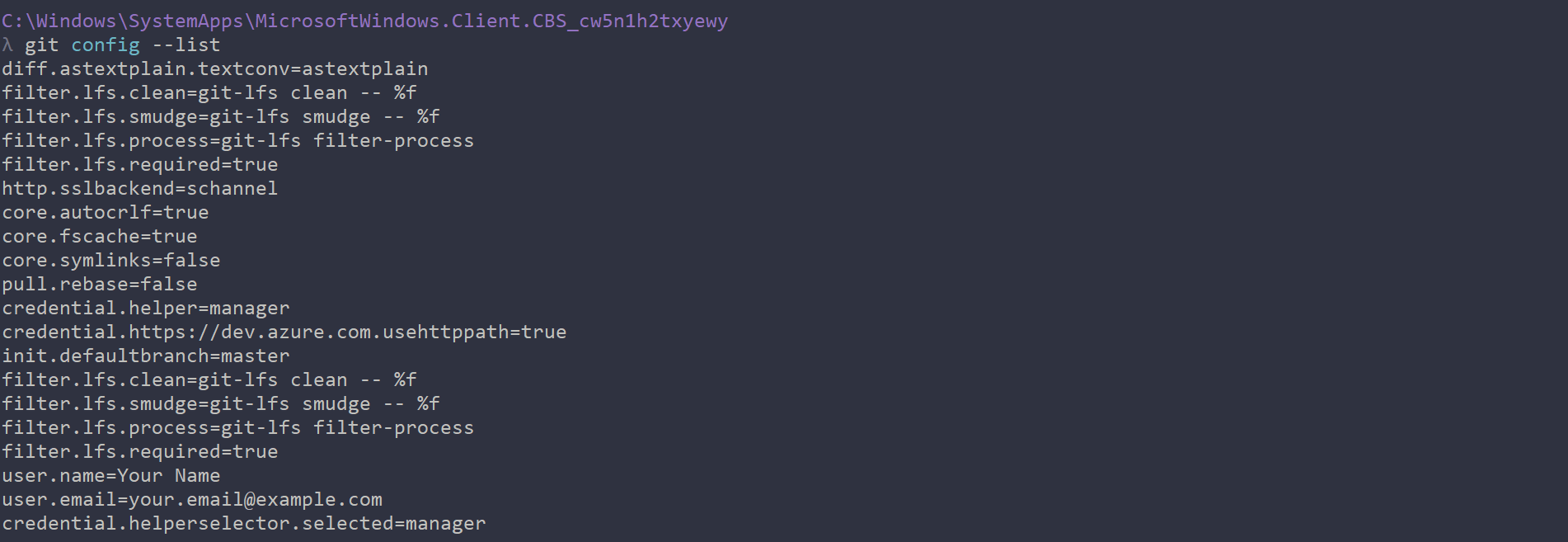
You can confirm your configuration with:
bash
git config --listThis will display your git settings, including the username and email you just set:
Tip: Use the same email address as your GitHub account. This ensures all your commits are properly linked to your profile.
Understanding Git Workflow
Every Git project follows the same basic workflow:
- Working Directory – where you make changes to files.
- Staging Area – a temporary place to prepare changes for commit.
- Repository (Local) – stores committed changes permanently.
- Remote Repository – a shared version hosted online (e.g., GitHub).
Here’s the flow in practice to be used on the GitHub repository:
bash
# Check which files have changed
git status

# Stage changes
git add filename.py

# Or add all changes
git add .

# Commit the changes
git commit -m "Added new mesh conversion script"

# Push the commit to the remote repository
git push origin main
Note: Before running
git statusor other commands in the terminal, ensure that you have navigated to your GitHub repository folder (the Working Directory). Use thecdcommand to change the path to your project directory.
Example:
bash
cd path/to/your/github-repoChecking Status and History
Git gives you clear visibility into what’s happening in your GitHub repository.
bash
git status       # Shows modified and untracked files
git log          # Shows commit history
git diff         # Shows line-by-line changes
Note:
qexits from long log or diff views inside the terminal.
Undoing Mistakes (Safely)
One of the biggest strengths of Git is how safely you can revert mistakes.
| Task | Command |
|---|---|
| Undo staged changes | git reset filename |
| Undo last commit but keep changes | git reset --soft HEAD~1 |
| Discard local changes | git checkout -- filename |
| Revert a specific commit | git revert <commit-hash> |
These commands help you roll back to a stable point without deleting important work.
Ignoring Unnecessary Files
Some files — like compiled binaries, temporary data, or simulation results — should not be tracked by Git. You can exclude them by creating a .gitignore file in your project root.
Example:
__pycache__/
*.xdmf
*.h5
*.log
output/
This ensures your repository stays clean and lightweight.
Summary
You’ve now learned the core Git operations you’ll use in your daily workflow:
- Installing and configuring Git
- Creating or cloning repositories
- Staging, committing, and pushing changes
- Checking history and managing mistakes
- Keeping your repo clean with
.gitignore
This foundation will prepare you to collaborate efficiently using GitHub, which we’ll cover next.